TypingVE lets you navigate and edit in the foreground application using configurable keyboard commands. Turn on command mode to use single-key commands, or hold a configured modifier to use a shortcut. The active profile determines which keys do what.
Get started
Microsoft Store edition
Install TypingVE from Microsoft Store, quit any portable copy, then open TypingVE from Start or the Store. The main window opens on Mapping Profile. Opening it again shows the existing window without restarting keyboard handling. Closing or minimizing hides it in the tray; use tray Exit to quit. Sign-in startup stays hidden.
The first launch creates editable defaults in %LOCALAPPDATA%\Packages\<package-family>\LocalCache\typing\. Windows assigns the package family. This folder holds configuration.ini, profiles, language.txt, window-size.txt, and diagnostic logs. Updates preserve existing data. LocalCache is excluded from Windows app-data backup/restore; copy your configuration and profiles outside package app data before uninstalling or resetting the app. Use Import to copy portable mappings. Portable preferences and startup registration are not migrated. Installed resources are read-only; portable command-line path overrides are unavailable.
Portable edition
- Extract the portable ZIP into a folder. Keep
TypingVE.exe,inputsim.dll,configuration.ini, and theprofilesandlanguagesfolders together. - Quit any older TypingVE or Aldetl instance using the same global toggle shortcut.
- Run
TypingVE.exe. TypingVE starts enabled in the Windows notification area (the tray); its main window stays hidden. - Open a text editor and place the cursor in some text.
- With the default profile, tap and release Caps Lock or Left Alt alone to enter command mode. Press I, J, K, or L to move up, left, down, or right.
- Tap a mode key again, or press G, to leave command mode and resume ordinary typing. Automatic mode exit after inactivity is also enabled by default.
The examples below use the bundled Default profile. Use Mapping Profile to inspect or edit your profile. The main tabs are Mapping Profile, Event diagnostics, Settings, and Help, in that order.
Enable, disable, and exit
Enabling TypingVE allows it to recognize your configured commands. Command mode is a separate state: TypingVE can be enabled while command mode is off.
Use these controls to manage TypingVE:
| Control | Action |
|---|---|
| Ctrl+U by default | Toggle TypingVE enabled or disabled. |
| Double-click the tray icon | Toggle TypingVE enabled or disabled. |
| Tray Enable or Disable | One toggle item starts or stops keyboard handling; its label shows the next action. |
| Tray Show Window | Open the main window. |
| Close or minimize the main window | Hide the window and keep TypingVE running in the tray. |
| Tray Exit | Quit TypingVE. |
The tray menu lists Show Window, the Enable/Disable toggle, and Exit, in that order. Disable finishes output cleanup before stopping recognition. After a cleanup failure, use the tray toggle to retry the lifecycle change.
Open Help for a short introduction and examples of Vim and Emacs style caret movement and shortcut mapping. Select Open User Guide… below the examples to read this full guide in a separate resizable dialog with formatted headings, lists, tables, and inline text. The guide is read-only and scrollable; you can select and copy its text. Use Close, Escape, or the title-bar close button to return to Help. To check the application version, select About beside Open User Guide….
Use command mode and shortcuts
A mode key toggles command mode when you press and release it alone. Holding it while pressing another key can run a configured shortcut instead. For example, the default Caps Lock+J moves left without first entering command mode.
The default profile uses Caps Lock as a mode key instead of its original capitalization toggle. To send the original Caps Lock key, hold Caps Lock, then press Space to turn capitalization on or off; this works with command mode either on or off.
Mappings with Command mode type run in command mode. Mappings with Hotkey type also work with command mode off, while TypingVE is enabled. Unmatched input passes through to the foreground application.
The cursor highlight shows command-mode or Caps Lock feedback when configured. When both apply, it shows two colored half-circles. The tray icon also distinguishes disabled, enabled, and command-mode states.
Move and edit with the default profile
These keys run in command mode:
| Key | Action |
|---|---|
| I / J / K / L | Move up / left / down / right. |
| H / P | Move one word left / right. |
| U / O | Move to Home / End. |
| N / M | Page Up / Page Down. |
| Left Shift plus a movement key | Select text while moving. |
| E / R | Delete / Backspace. |
| F / D / S / A | Set a movement step of 1 / 2 / 5 / 10. |
| V | Toggle selection for subsequent movement. |
| Q | Request the opposite of the most recent recorded movement. |
| Y / T | Insert the local date / time. |
| G | Leave command mode. |
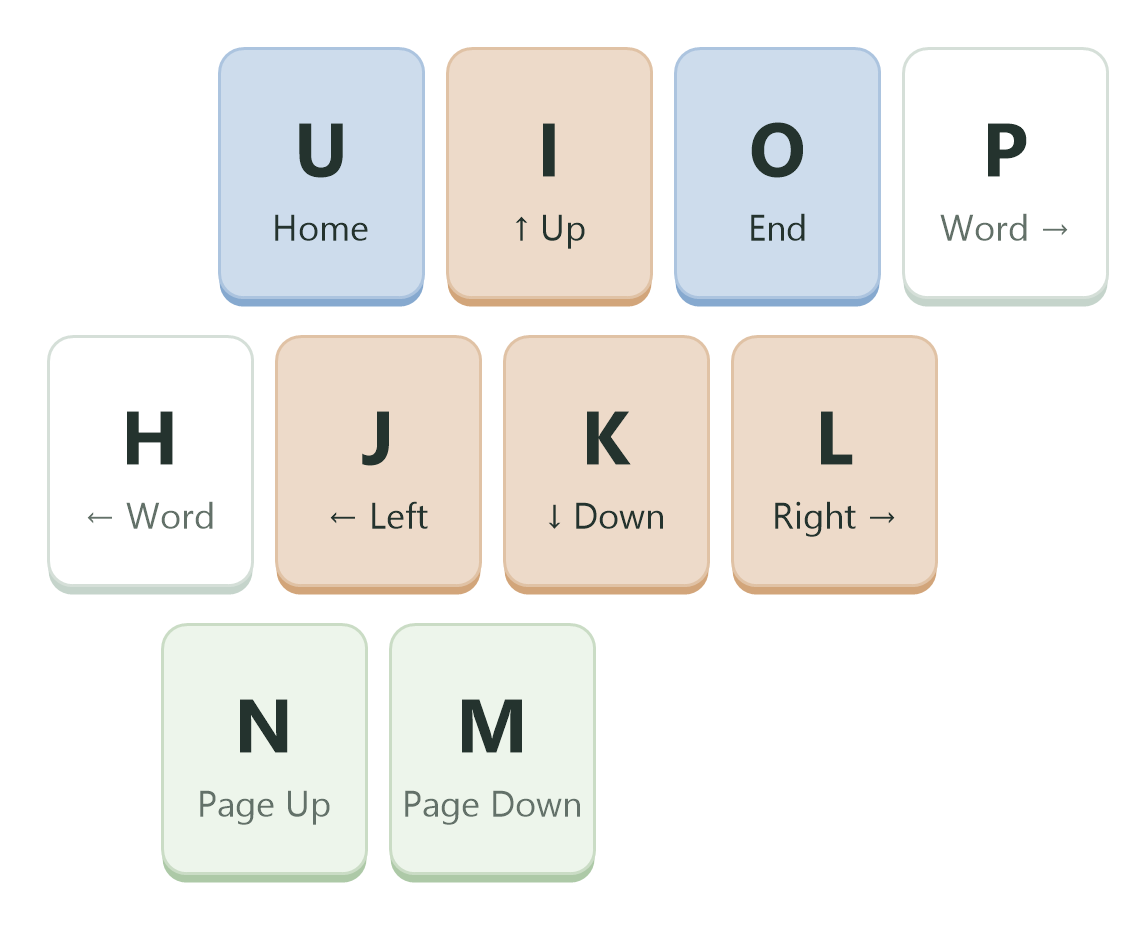
Default command-mode movement keys. Home and End follow the application's cursor behavior.
A step applies to the next movement attempt. For reversible direction pairs, that count remains in use for the pair until changed or command mode resets. For example, S, then J, moves left five times; L then moves right five times. Use F before a movement to restore its count to one. Home and End do not retain a count.
Q reverses a recorded movement; it does not undo document edits. Use your application's usual undo shortcut, such as Ctrl+Z, to undo edits.
Selection adds Shift to movement output. Tap V again to turn it off. Leaving command mode clears selection and movement counts; entering command mode also clears movement history.
The mapping editor's Caps Lock action supplies the capitalization toggle (CapsLock or capslock in a profile file). Right Shift combinations do not toggle capitalization in the default profile. While Caps Lock is a mode key, overlapping another key suppresses its normal capitalization function; only an isolated tap switches command mode.
Customize mappings
Open the main window and select Mapping Profile. A profile is an independent .typing.ini file containing mode keys, command-mode mappings, and hotkeys.
Edit and activate a profile
- Choose a saved profile from the Profile dropdown to open it for editing without changing the active profile. The dropdown shows names from the app's profiles directory only; subdirectories and other locations are excluded.
- Use New for an empty named draft or Copy for a named copy of the editor's current mappings. Copy includes unsaved mapping edits and leaves the source file unchanged.
- Use Key mapping: Add, Edit, Delete above the table. Each mapping has an Enabled state, Type, Trigger, Action, and Diagnostics. Enter a trigger or select Record trigger. Press and release a valid shortcut to place it directly in the Trigger field; an invalid or stopped recording leaves the previous value unchanged. The same recording flow applies to Record output. Use Stop recording to end capture without changing the field. Choose Mode key, Command mode, or Hotkey from Type, then choose an action and its parameters. Confirm updates the draft; Cancel leaves the mapping unchanged.
- Use Save to write changes. New, copied, and imported profiles save in the default profiles directory. Saving never changes the running mappings. Select Set as active beside the dropdown to save any pending edits and activate the displayed profile after output cleanup.
Click a Type, Trigger, or Action heading to sort the mappings by its text. Click the same heading again to reverse the order; the arrow shows the direction. Sorting keeps selected mappings selected and leaves diagnostic-only rows at the bottom. It changes only the display order, without changing the profile or its saved order.
Use the Enabled checkbox in the table or Add/Edit dialog to keep a mapping in the profile while turning it off. New mappings start enabled. Disabled mappings retain their trigger and action but do not handle keys; disabling a Mode key also stops it entering command mode. Save persists the state, and Set as active applies it. Copy and Import preserve disabled mappings. Profiles using disabled mappings are saved as format version 2, which older clients cannot open.
The page shows active and edited names without paths, and distinguishes unsaved changes, saved inactive files, and active saved revisions. If activation of a saved active-profile revision fails, use Set as active to retry. Shortcut recording preserves left/right modifiers and captures the global toggle without executing it.
Manage profiles
Use these actions to manage profile files and edits:
| Action | Effect |
|---|---|
| Save | Write the edited profile without changing the running mappings. |
| Set as active | Save and activate the displayed profile; retry a failed activation. |
| Save As | Choose any writable destination. Files saved outside the default profiles directory stay out of the dropdown. Import a copy to make one available there. |
| Rename | Request a unique display name, then Save the change. The existing filename is retained. |
| New | Create an empty named draft. Save it to add it to the dropdown. |
| Copy | Create a named draft from the current mappings, including unsaved edits. Save it as an independent profile. |
| Delete | Choose an inactive available profile and confirm deletion. The active profile is excluded; activate another profile with Set as active before deleting it. |
| Import | Choose a profile or legacy INI, then name the imported draft. Save it to the default profiles directory. The source file is retained. |
| Minimize the main window | Keep the working copy in memory. |
| Close the main window, replace an edited profile, delete the edited profile, or exit | Choose Save, Don't Save, or Cancel when prompted. Cancel keeps editing; Don't Save abandons the edits. |
Saving checks for external file changes and keeps the previous destination in a sibling .bak file. Available profile names must be unique for New, Copy, Import, or Rename. An empty profile intentionally has no mappings or mode keys.
Key names and profile notation
Use Record trigger or Record output to capture a shortcut with the correct key names. When typing a shortcut, put modifiers before the final key and separate them with +, for example LMenu+C or Control+Shift+Left. Left and right modifier keys have distinct names:
| Modifier | Left key | Right key |
|---|---|---|
| Control | LControlKey |
RControlKey |
| Shift | LShiftKey |
RShiftKey |
| Alt | LMenu |
RMenu |
Caps Lock is named CapsLock. Use the explicit left/right names when the side matters. The Default profile declares Caps Lock and Left Alt as mode keys; each can be tapped alone for command mode or used in configured shortcuts.
If editing a profile file directly, use Trigger=Action. For example, LMenu+C=Control+C maps Left Alt+C to Ctrl+C. [modekeys] contains mode-key declarations such as CapsLock=mode and command-mode mappings such as J=Left; [hotkeys] contains shortcuts that also work with command mode off. The [profile] section contains the profile name and format version.
In version 2, !J=Left keeps the mapping disabled; J=Left enables it. A line beginning with ; is a comment and does not appear as an editable mapping. Use the Enabled state to retain mappings you want to switch on again. For a movement step, choose Step count with a positive integer in the editor; the file notation is stepN, for example F=step1.
Change application preferences
The paths and editable translation files described below apply to the portable edition. The Store edition keeps all mutable preferences in its package-local typing folder described above, and uses only shipped translations. Its Start with Windows checkbox uses Windows' startup task. If Windows has disabled the task, enable it in Windows Settings > Apps > Startup; policy-controlled tasks cannot be changed in TypingVE. Opening Settings or updating the app does not enable startup.
In Settings, choose System default, English, or 简体中文 from Language. The interface changes immediately, preserving mapping edits and the running mappings. TypingVE remembers the selection per user in %LOCALAPPDATA%\Typing\language.txt. A failed language change preserves the previous selection and displays an error; startup uses English if a saved language profile cannot be loaded.
Language profiles are UTF-8 .ini files in the app's languages folder, separate from mapping profiles. Their stable message IDs can be translated without rebuilding TypingVE. Missing translations use English. The matching .md file supplies the full guide; a missing guide uses the English guide. Files are loaded at startup and when choosing a different language. After editing the current language file, switch away and back or restart to reload it. System-language changes take effect on the next launch or after switching away from and back to System default. Language selection does not change keyboard layout, the input method, profile notation, or date/time command output. System-managed dialog buttons and Windows error descriptions may remain in the Windows language.
Open Settings and check Start with Windows to start TypingVE in the system tray when you sign in. Uncheck it to cancel automatic startup. Changes take effect immediately without Save or Apply, and affect only your Windows user account. The option is off until you enable it. Changing it does not stop the running app or change your mappings.
If you move the portable TypingVE folder, enable the option again from its new location. If a change fails, Settings displays the error and keeps the preceding checkbox state. If the setting cannot be read, reopen Settings to retry. Windows Startup Apps controls or organization policy can separately prevent automatic launch.
Other application preferences live in configuration.ini beside the executable. They include the global enable/disable shortcut, automatic command-mode exit, and cursor feedback. Edit this file and restart TypingVE to change them.
The bundled settings use hotkey=Control+U, mode_auto_exit=on, and mode_auto_exit_time=2. Cursor feedback accepts mode_cursor_tip=on or off; the older mode_mouse_tip name is also supported. If both names appear, mode_cursor_tip takes precedence, and both supplied values must be valid.
Successful profile activation remembers the profile under [profiles] active. Relative profile paths resolve from the directory containing configuration.ini.
TypingVE stores the remembered window size and diagnostic log under %LOCALAPPDATA%\Typing, with user-profile and temporary-directory fallbacks. Diagnostic logging runs automatically in the background for troubleshooting. It preserves history across launches, keeping typing.log and up to three archives (typing.log.1 through .3), each limited to 1 MiB. The .lock file coordinates access and may remain beside them.
Logging failures are silently ignored. A busy logger may drop messages, and the last messages may be lost when TypingVE exits; logging never waits for disk writes before letting the app continue or quit. Normal logs contain lifecycle context and failures, not a record of your typing or every successful command.
Troubleshoot
Check these conditions if TypingVE does not behave as expected:
| Symptom | What to check |
|---|---|
| No main window appears at startup | Look in the Windows notification area and choose Show Window. |
| Command keys type letters | Check that TypingVE is enabled, enter command mode, and check the active profile. Automatic mode exit may have returned you to ordinary typing. |
| Saved mappings do not take effect | Choose the profile for editing, then use Set as active to apply it. Saving alone does not change running mappings. Use Set as active again to retry a failed activation. |
| Startup reports an invalid application configuration | Correct the file at the reported path, then restart. TypingVE exits before starting keyboard handling and leaves the file unchanged. |
| Startup opens profile recovery | Select a valid profile in Mapping Profile, or create and save one, then use Set as active. Commands remain unavailable until recovery succeeds. |
| The global toggle cannot be registered | Quit another TypingVE or Aldetl instance using that shortcut, or configure a different shortcut and restart. |
| Closing the window does not stop TypingVE | Use Disable to stop command recognition or tray Exit to quit. |
The Event diagnostics tab shows keyboard input events. Use Show keyboard events to control the display. The keyboard event table fills the available space. Use Clear beside the checkbox to empty the displayed history without changing keyboard capture or the checkbox.